
Rasengan Maker
Spin an energy sphere in Rasengan, Rasenshuriken, Hollow Purple or Spirit Bomb style and export transparent GIFs.
Drag the sphere to tilt its spin and tap it to play the Charge. Switch Mode to Beam and drag to aim, or tap to send the beam. Export a transparent GIF or a green-screen video.
How is Rasengan Maker working for you?
About Rasengan Maker
- Presets
- Rasengan, Big Ball-, Rasenshuriken-, Planetary-, Sage-, Tailed Beast Ball-, Hollow Purple- and Spirit Bomb-style, Kamehameha-style beam
- Particles
- 400 to 6,000, each on its own tilted orbit
- Animations
- Seamless spin loop, Charge and Beam
- Export
- Transparent PNG, avatars, wallpapers, video, GIF, green screen, transparent GIF, sprite sheet
- Status
- Unofficial fan tool; every shape is drawn from scratch
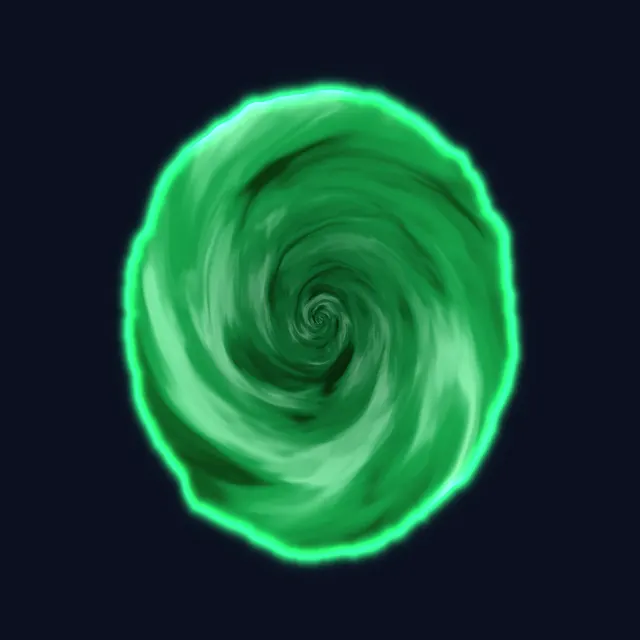
The Rasengan maker draws a spinning energy sphere. Thousands of particles each run on their own tilted orbit, so the sphere fills with crossing streaks, as the spinning chakra ball is drawn in anime. Start from a preset — Rasengan, Big Ball-style, Rasenshuriken-style with spinning wind blades, Planetary-style with orbiting spheres, Sage-style, Tailed Beast Ball-style with a dark core, Hollow Purple-style where a red and a blue sphere merge, Spirit Bomb-style, or a Kamehameha-style beam — then change the size, particle count, turbulence, spin speed, trail, glow and every color.
Press Charge to play the particles spiraling in, or Beam to send a beam toward the angle you aim. Drag the sphere to tilt its spin, switch Mode to Beam and drag to aim it, and add wind blades, orbiting spheres or a dark core. Every particle makes a whole number of turns per loop, so the spin loop repeats without a jump.
Export a PNG with a transparent background, round avatars, phone and desktop wallpapers, or the spin, Charge and Beam animations as video and GIF. Each animation also exports as a green-screen video, a transparent GIF or a sprite sheet for video editors and games. Every shape is drawn from scratch; this is an unofficial fan tool.
How to use Rasengan Maker
- Pick a preset. Tap a preset such as Rasengan, Rasenshuriken-style or Hollow Purple-style to load its look.
- Shape the sphere. Change Size, Particles, Turbulence, Spin speed, Trail and Glow, and set the Core, Swirl and Halo colors.
- Add extras. Raise Wind blades or Orbiting spheres, or turn on Dark core or Red and blue merge.
- Tilt, charge or aim. Drag the sphere to tilt its spin. Press Charge to play the charge-up, or switch Mode to Beam, drag to aim and press Beam.
- Export. Open Export for a transparent PNG, avatars or wallpapers, or the Spin loop, Charge and Beam as Video, GIF, Green screen, Transparent GIF or Sprite sheet.
Frequently asked questions
How do I make a transparent Rasengan GIF?
Open Export and choose Transparent GIF under Spin loop, Charge or Beam. GIF pixels are either clear or solid, so the soft outer glow is trimmed; for the full glow, export Green screen instead and key out the green in a video editor.
Can I use the Rasengan in a video?
Yes. Choose Green screen under any animation for an MP4 or WebM video on pure green that keys out cleanly in CapCut, Premiere, DaVinci Resolve and other editors. The spin loop repeats seamlessly, so it can run for as long as the shot lasts.
How do I make a Rasenshuriken?
Tap the Rasenshuriken-style preset, or raise Wind blades to 4 and set Blade length to about 3. The blades spin around the sphere with a ring of wind, tilted with the sphere.
How does the Hollow Purple-style preset work?
Red and blue merge splits the particles into two colors. Press Charge and a red sphere and a blue sphere move together and merge into one purple sphere.
Can I make a beam like a Kamehameha?
Yes. Tap the Kamehameha-style beam preset or set Mode to Beam, drag on the canvas to aim and press Beam. Export the Beam animation as a video, GIF or green-screen overlay.
Is this an official Naruto tool?
No. It is a free, unofficial fan tool. Names such as Rasengan describe a style, and every particle, blade and beam is drawn from scratch in the browser.